Guide
Contents: Getting Started | Text as Images | Adding and Editing Alt Text | Decorative and Complex Images | PDFs | Media | Semantic Content | Check Links
Note:
Select any image embedded in this guide to expand
Getting Started
-
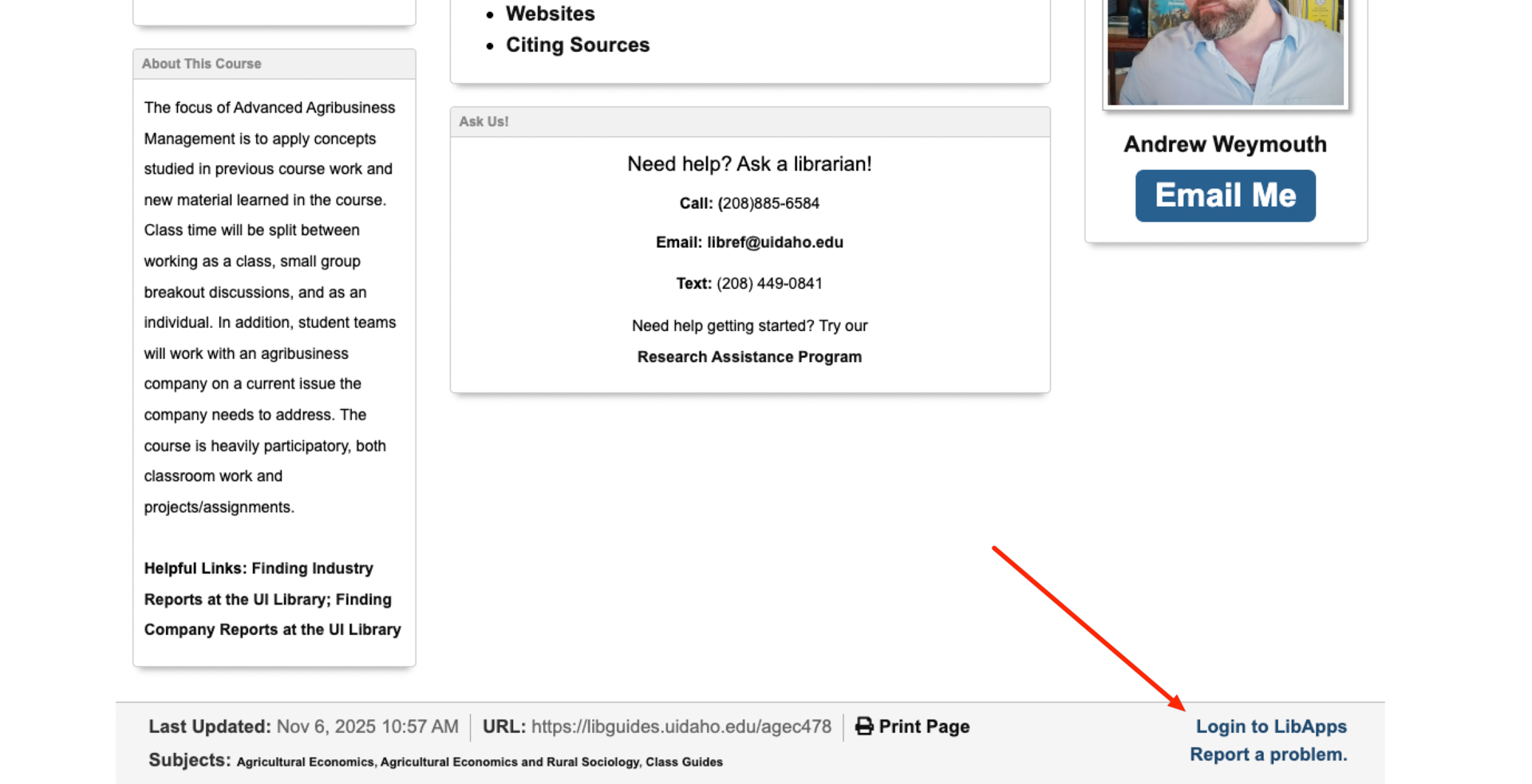
To begin, visit the LibGuide you want to remediate, scroll to the bottom of the page and select
Login to LibApps.![Screen capture of the LibGuide interface with a red arrow pointing toward the bottom right of the screen.]()
Text as Images
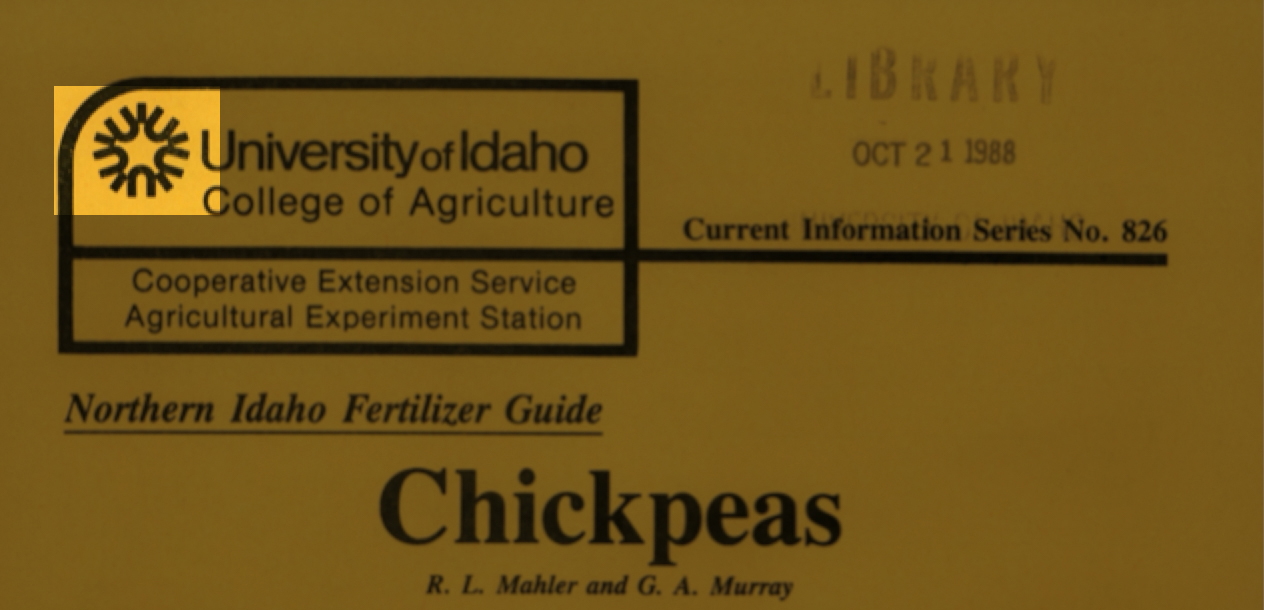
- Images should not be used as replacement for text or tables.
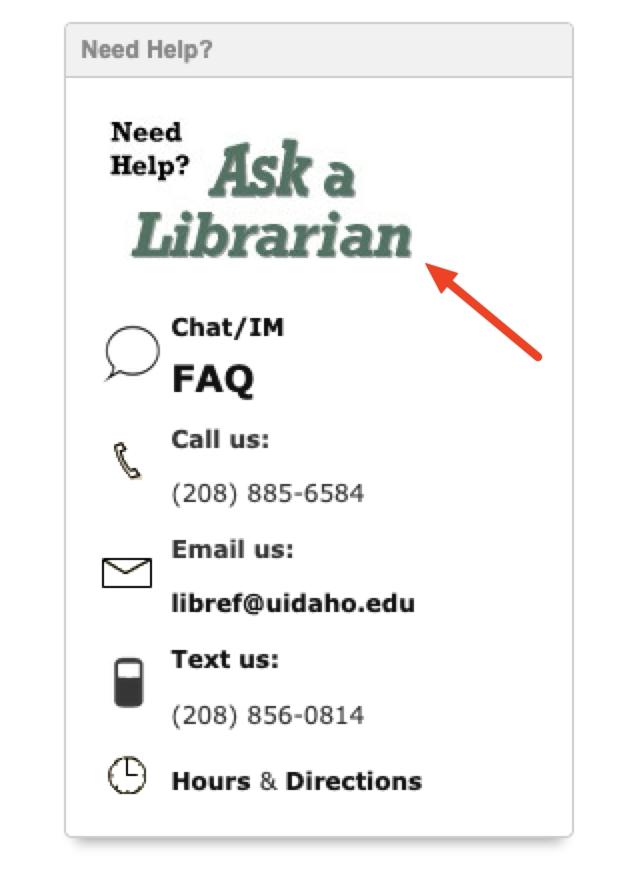
When reviewing images being used as text, it is helpful to think about what the image is actually adding to your guide that can’t be achieved with text. If you find that the image is crucial, alt text will need to be added to the image reading the text contents.
Adding and Editing Alt Text
- Images must have alt text.
To check if images on your page are missing alt text, there are a variety of web browser plug-ins that are available. The one I use is called Image Alt Text Viewer, which searches all of the image files embedded in the page and either displays its alt text field or lets you know it is missing.
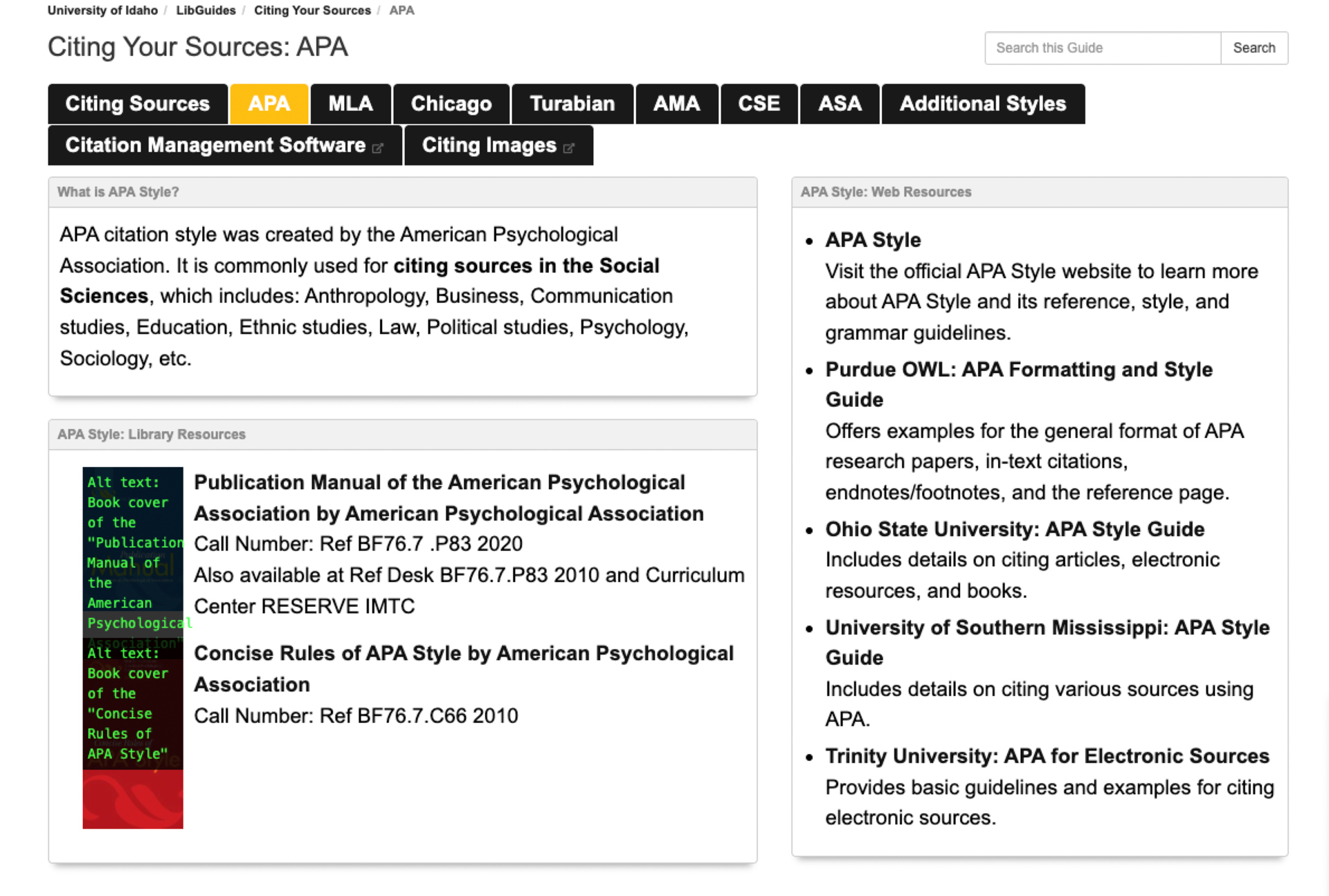
To add or edit the alt text of the images in your LibGuides, select the edit icon in the lower right corner of the box where the image is located, then select Edit from the dropdown:
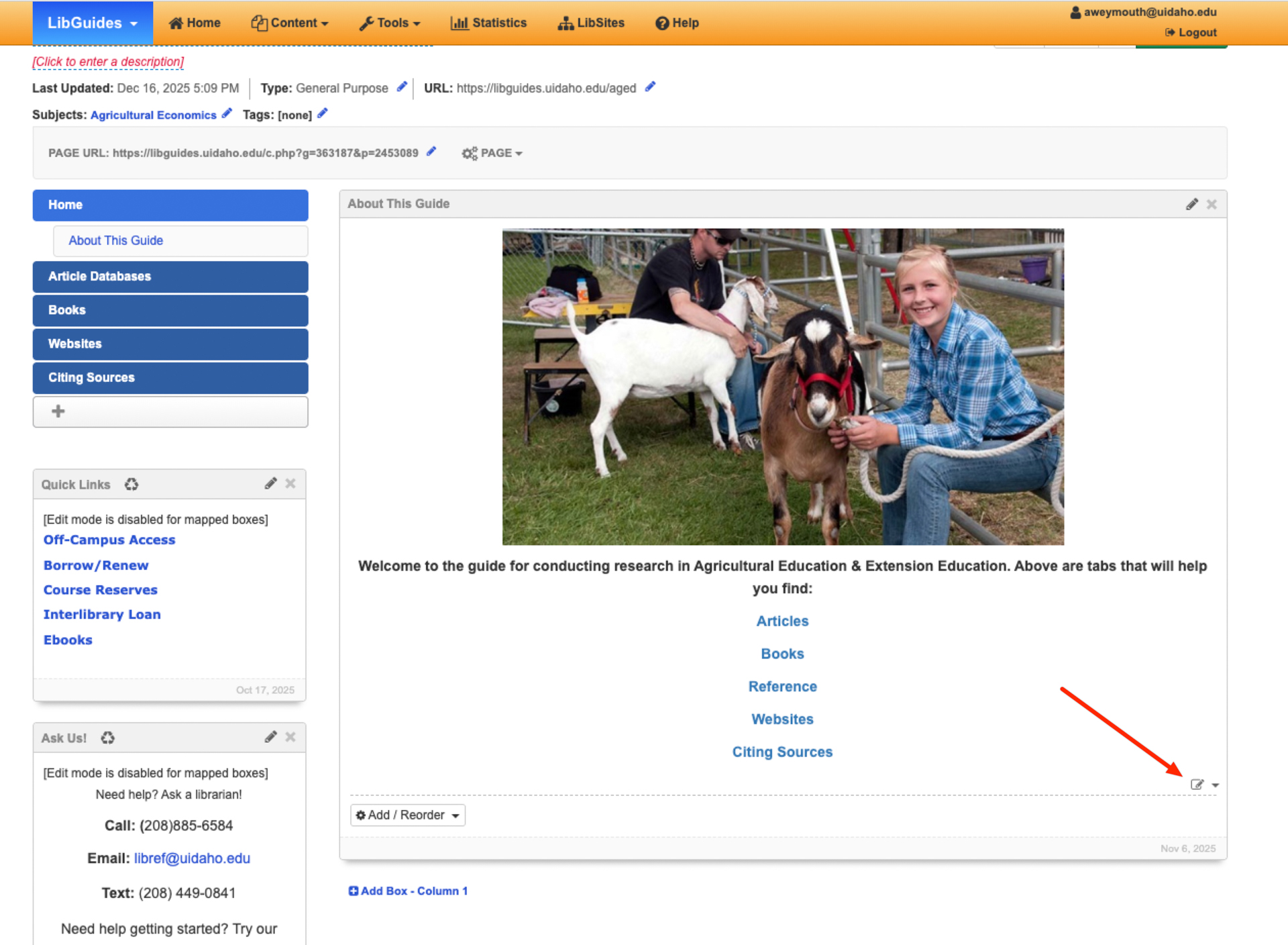
Double click the image within the editing window:
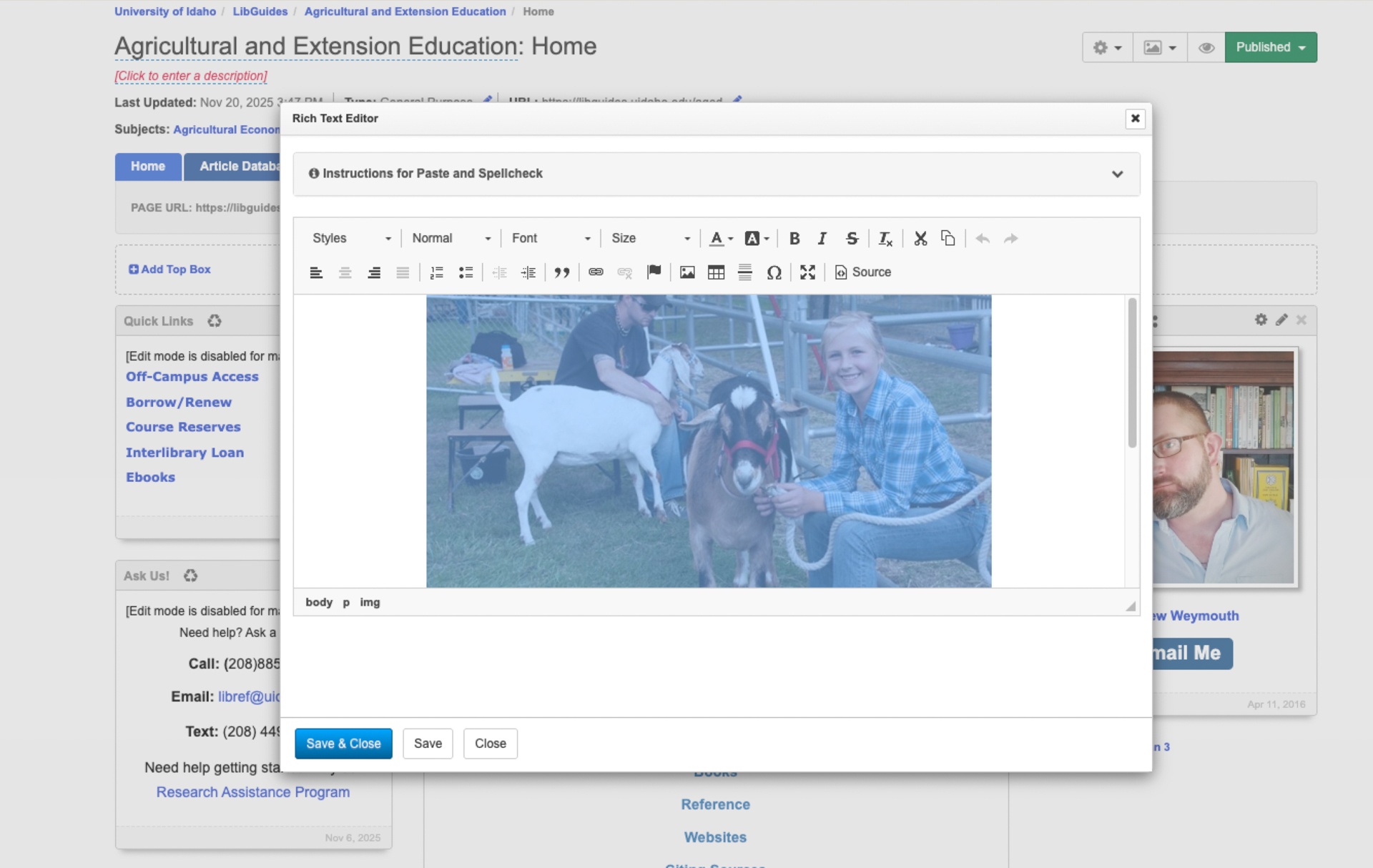
Within the Image Properties window, add or edit descriptions in the Alternative Text field.
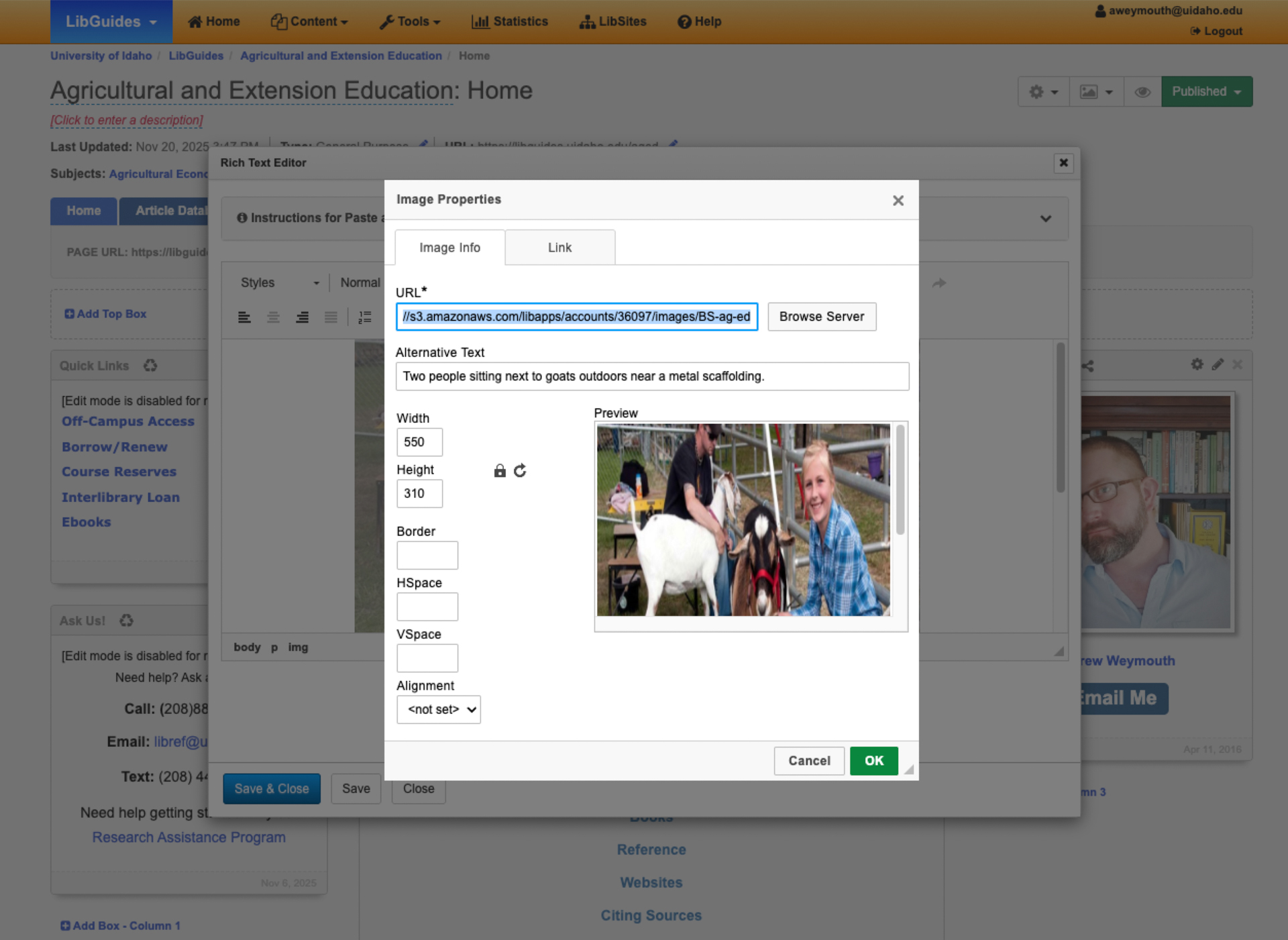
When writing alt text, a good rule of thumb is that the image description is generally everything that is not in the image (date, time, location and names of people in the image) and the alt text description is everything that is in the image (Two people wearing hats and suits beside a sign that reads Hat Store, standing on the sidewalk).
If you are wondering how to classify an image to determine whether it needs alt text, you can refer to the WCAG Alt Text Decision Tree.
Decorative and Complex Images
Decorative images are the only image types that should not have any alt text, so a patron using a screen reader will skip past that element on a page. These are defined by the Web Content Accessibility Guidelines as images that don’t add information to the content of a page and can include:
- Visual styling such as borders, spacers, and corners;
- Supplementary to link text to improve its appearance or increase the clickable area;
- Illustrative of adjacent text but not contributing information (“eye-candy”);
- Identified and described by surrounding text.
Although this shouldn’t really come up too much in LibGuides, if you do have a decorative element, simply leave the alt text field blank for the item so patrons using screen readers will skip over it.
Complex Images
While these elements don’t seem to be incorporated in our LibGuides frequently, complex images such as charts and graphs need to have detailed descriptions in the body text that convey their full information. These images also need alt text that is less detailed but still conveys a sense of what is being communicated visually. An example from the WCAG guide for creating alt text for complex visual images here:
- “Bar chart showing monthly and total visitors for the first quarter 2014 for sites 1 to 3, described in detail below.”
This signposts to patrons using screen readers that this image will be unpacked shortly.
PDFs
Check any PDF files that are being hosted onto our LibGuide or library servers, as we are responsible for making this material accessible. For a full guide to checking and remediating the accessibility of your PDF files with Adobe Acrobat Pro, please visit the Adobe PDF Accessibility Remediation Workshop.
Media
All embedded video and audio needs to have a description that lets patrons know there is media below, as well as a transcript of the recording. The majority of embedded media that is currently on our LibGuides is coming from YouTube, which will have an auto-generated transcript that screen readers can tab through and implement on playback.
In this example:
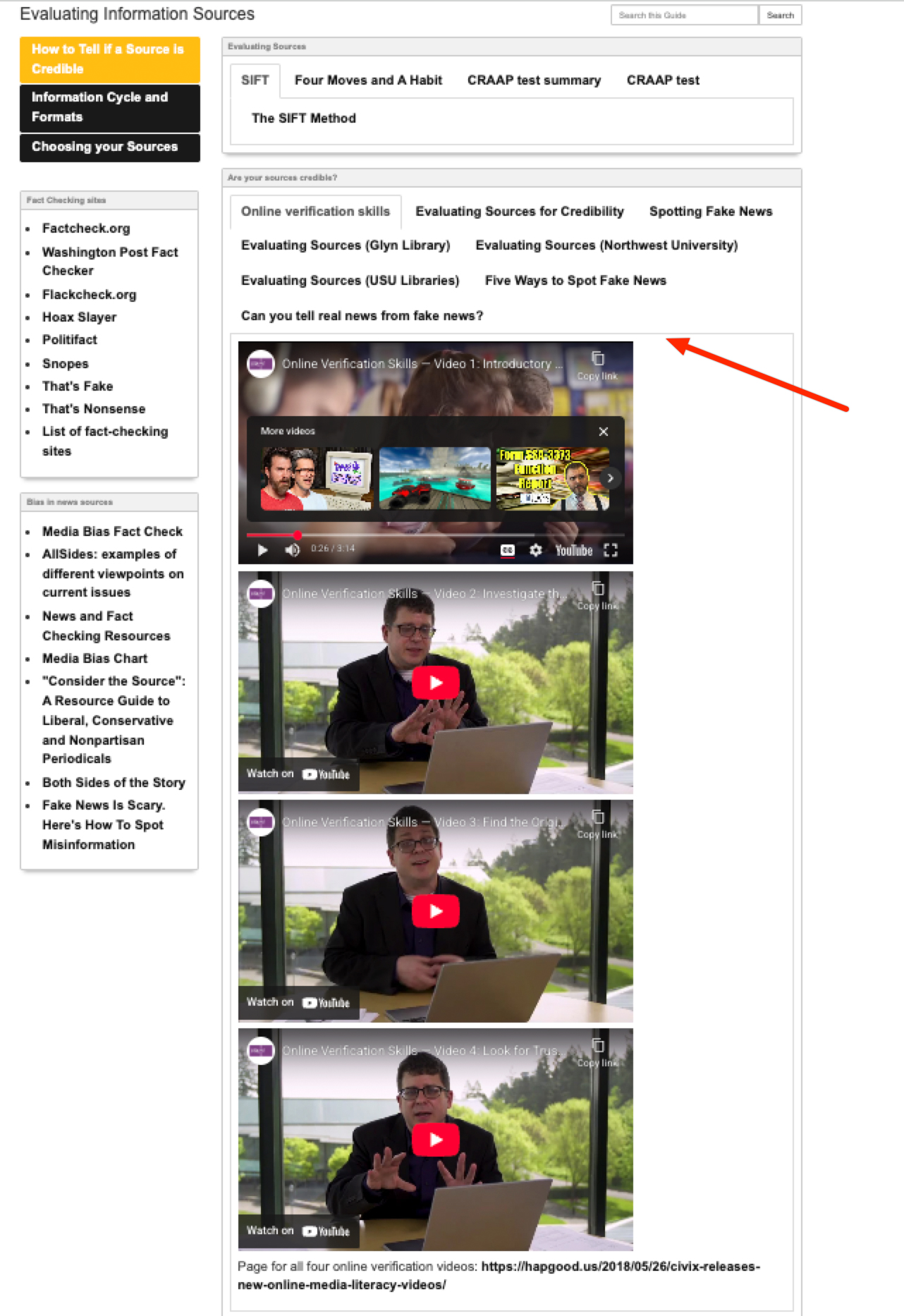
A short description before the video content would let patrons using screen readers know what is below and why it is relevant to the instruction topic. For example:
- “Below are four short videos by Mike Caulfield, Director of Blended and Networked Learning, to help you develop your online verifications skills. After the introductory video, the second video will show you how to investigate source materials, followed by how to find the original source of the subject you are investigating, and finally a guide for finding trusted work.”
For video and audio media that does not have an auto-generated caption, a transcript will need to be created. Please reference this guide to generate transcripts of either audio or video material using Adobe Premiere. This includes details on how to edit and export your transcripts, as well as turning the media into a video file with mono or bi-lingual captions.
Semantic Content
Scan the content of the page body to ensure it constructed correctly:
- Make sure that each section or “box” has a descriptive and meaningful title
- All hyperlinks contain descriptive text
- For example, instead of “To find out more,
click here!” - State where the user will be going, like “To find out more,
visit the museum's exhibit page!”
- For example, instead of “To find out more,
- Ensure that text color alone is not used to convey meaning
We can assume that LibGuides infrastructure is going to automatically structure material in a logical order using the default settings. However, if there is any custom HTML coding that has been added to the boxes of your LibGuide, please ensure that:
- Any headings used on the page follow the correct logical order (H1, H2, H3…).
- HTML elements such as lists (ul, ol) are used (rather than arbitrary styling).
Check Links
Given the recent redesign of the main University site and changes to government record organization, auditing for bad links (or correctly redirecting links) is important. While there are many options out there, I use one called Check My Links to quickly vet all of the material on a page. Everything you need with the tool can be accessed without the “unlocking features” level of this plug-in.
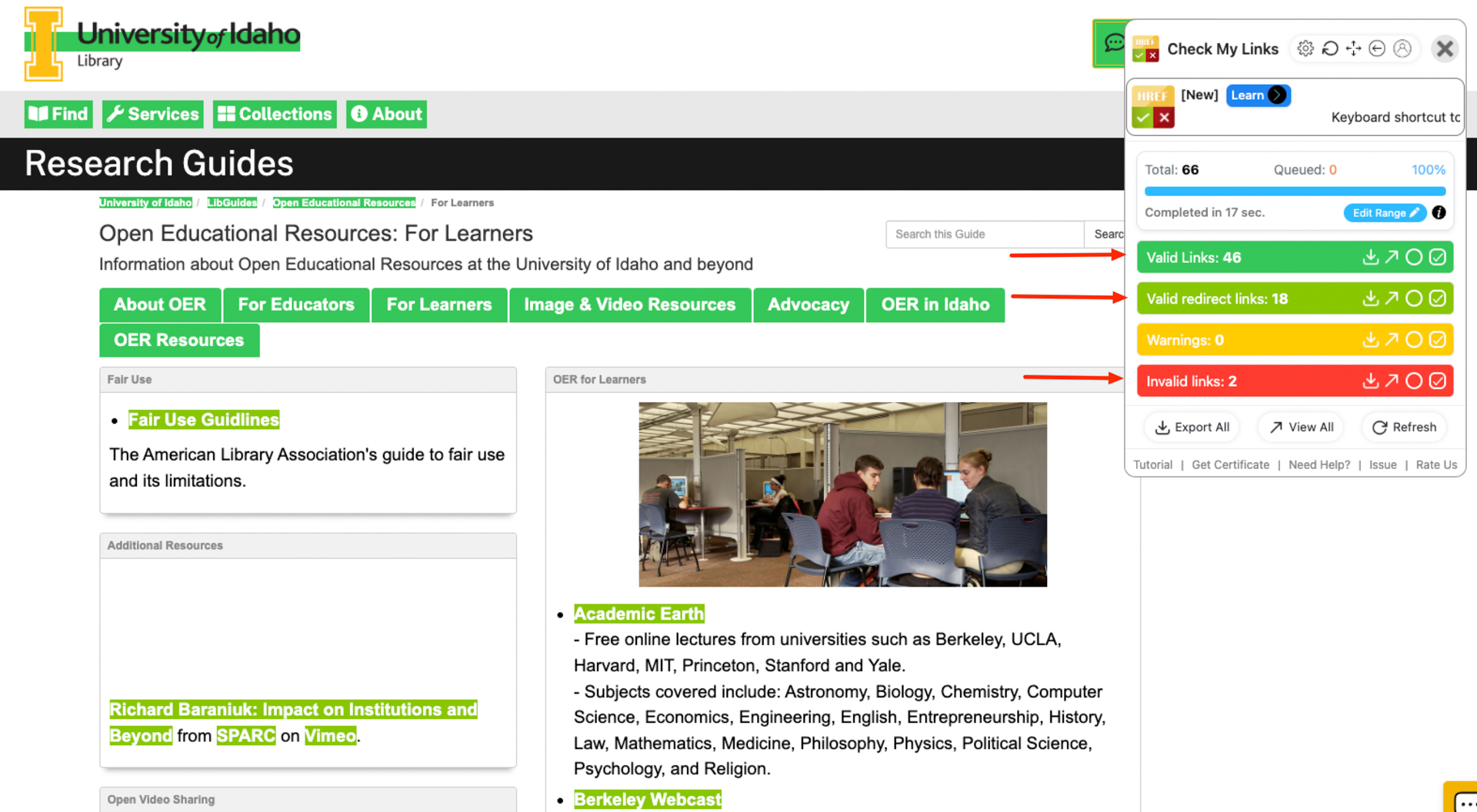
Use this tool or one similar to pinpoint any links that need updating. Select the edit tool within boxes that need correcting and save changes to implement.
       ________
     /         \
    |  LibGuide |
    |   -----   |
    |  ( •‿• )  |
    |    | |    |
     \_________/
     _||_   _||_
    /____\ /____\
That's it! Enjoy your accessible LibGuide!